
Connect AI tools to Mitti
Connect Claude, Copilot, Gemini, ChatGPT or another AI client to the Mitti MCP server and ask questions of your Mitti data.
This feature is currently in Preview. As we continue developing this feature, its functionality and availability may change before its full release.
What is the Mitti MCP server?
Mitti runs as a Model Context Protocol (MCP) server. MCP is an open standard that lets an AI client read data from another system through a defined set of tools. A client that supports remote MCP over OAuth 2.0 can query Mitti on your behalf, carrying your own access rather than an administrator's. This removes the export step. Rather than pulling Mitti data into a spreadsheet and pasting it into a chat, you ask the question in the client you already use, and it reads current data.
MCP works with approved and supported tools listed in the Integrations Marketplace.
The MCP is also capable of connecting with other tools, by using the server addresshttps://mcp.mitti.com/mcp
How does access work?
The connection is read-only. An AI client can look data up in Mitti, and it cannot create, edit, or delete anything unless an administrator grants write access.
What the client can see is bounded by your own Mitti permissions. Mitti filters the available tools against the permissions you already hold, so the client never reaches data you could not open yourself in the web app. Two people who connect the same client can get different answers.
A connection reads one organization. If you belong to more than one, you choose which one when you sign in, and the connection stays with that organization. To read a second organization, set up a second connection.
Data the client reads leaves Mitti. Anything it retrieves becomes part of that conversation with your AI provider, under whatever agreement you hold with them.
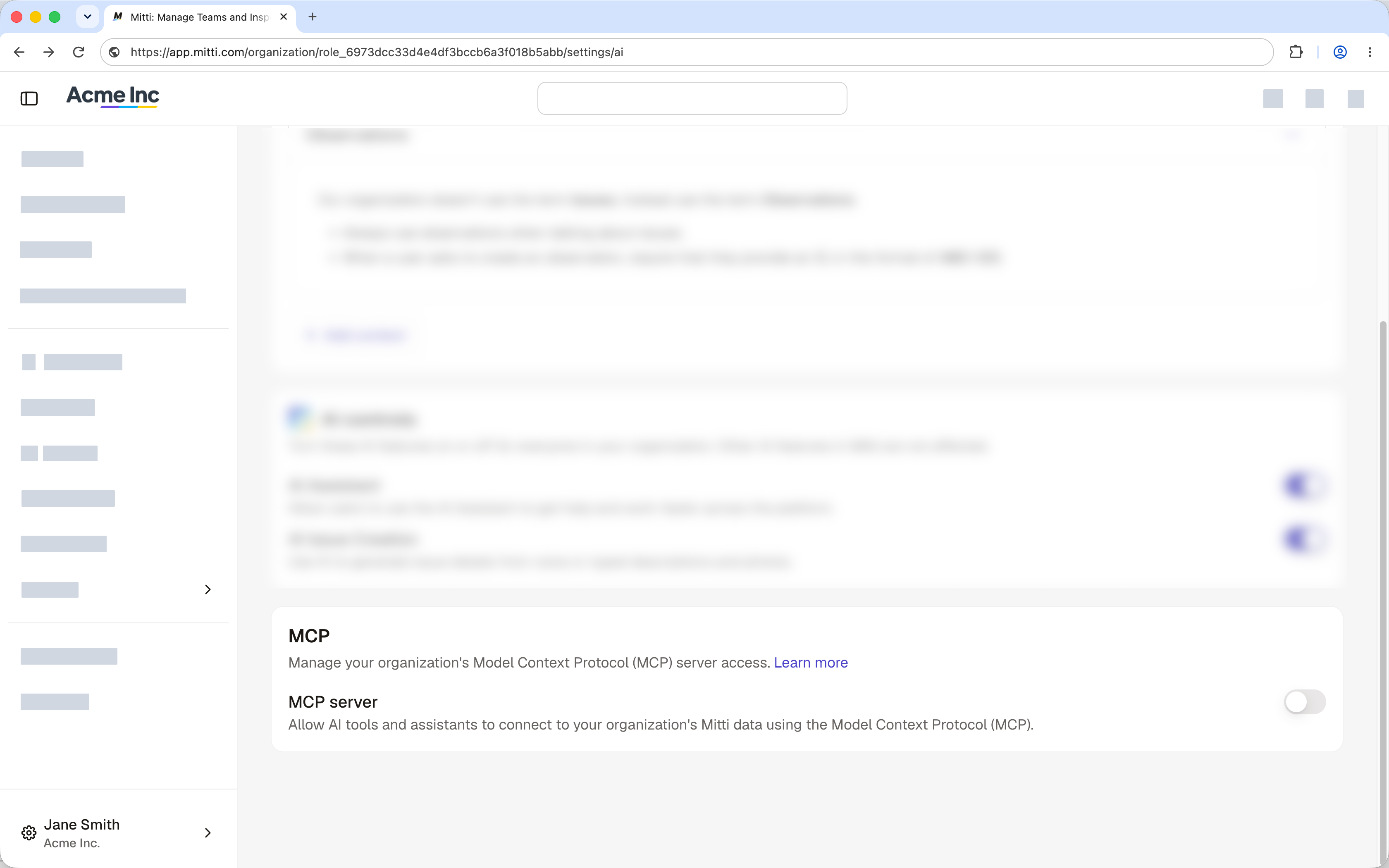
Administrators cannot see which users have connected. They can control who is able to connect, by turning the MCP server setting on or off for the organization and by granting or removing the "MCP: Read" permission on a role.
Requirements
- Mitti Premium or Enterprise Plan
- Full seat
- "MCP: Read" permission for your role
- MCP server setting turned on for your organization
- A supported AI platform
- Browser to sign in
1. Add Mitti to your AI client
Open the AI Platforms category of the Integrations Marketplace, find your platform, and follow the setup steps in its listing.
Every listing points the client at the same server address, https://mcp.mitti.com/mcp. Where the client asks for that address differs by platform.
2. Sign in and choose your organization
You are already signed in to your AI client at this point. This step signs you in to Mitti, so the client can read your data as you.
- When your client prompts you to connect, confirm it. Mitti opens a sign-in page in your browser.
- Sign in the way you sign in to Mitti, including through your company's single sign-on (SSO). A confirmation screen appears. If you belong to more than one organization, choose one on this screen.
- Mitti issues the client a token scoped to that one connection.
3. Verify the connection
- Ask the client to list the Mitti tools it can use. A list of tool names confirms the connection works.
- Ask one question you can check against the Mitti web app, so you can confirm the client is reading the right organization. Then name the Mitti tool it used, then return a figure that matches the same view in the web app.
Which Mitti data can you ask about?
By default, the server exposes a read-only subset of Mitti's tool registry, covering the areas below. Which tools you see depends on the permissions you hold.
What you can do
- Look up inspections and their responses, filtered by template, site, date range, or who completed them.
- Review actions, including assignee, status, and which ones are overdue.
- Read issues raised in your organization, including category, site, and status.
- Look up assets and their details, including asset type and the site each one belongs to.
- Check inspection schedules, including what is due and what has been missed.
- Read training records, including course completions and progress for the people you can already see.
- Look up your organization's sites and groups, and who belongs to them.
Some capabilities depend on the permissions you hold, so a team member may see tools you do not. If a capability you expect is missing, ask your Mitti administrator to review your permissions.
Example prompts
| Task type | Prompts |
|---|---|
| Reading |
|
| Writing |
|
| Reading and writing |
|
Your AI client may let you turn individual tools on or off, or ask you to approve a tool before it runs. Those controls belong to the client rather than to Mitti, so check its own documentation.
Manage MCP access
Administrators control MCP access in two places.
| Control | What it does | Default |
|---|---|---|
| The MCP server organization setting | Turns the MCP server on or off for everyone in the organization | On |
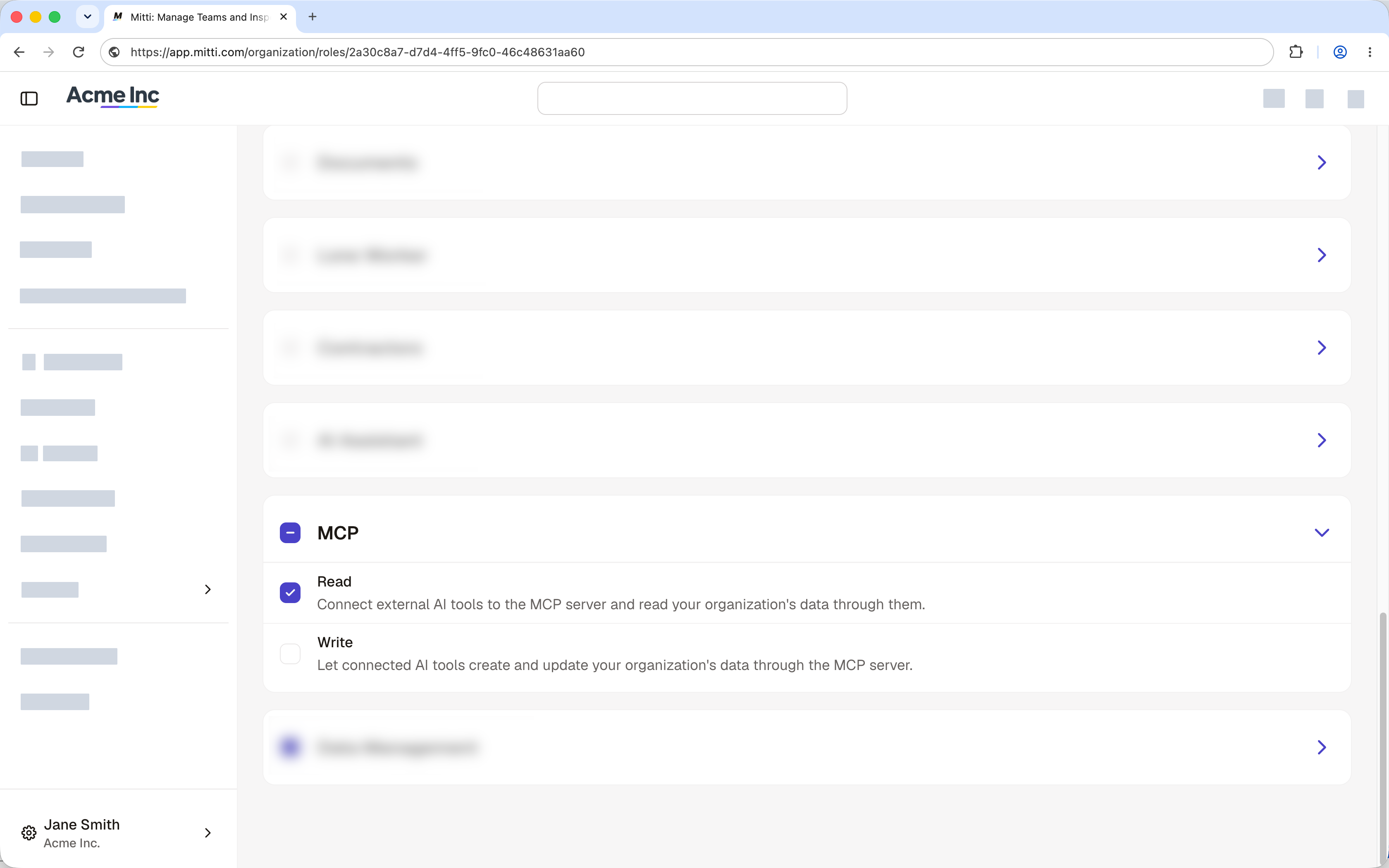
| The MCP permissions on a global role | Read lets a user connect a client and read data. Write lets a connected client create and update data | Read is on for full seats, while write is off. |
Both have to allow it before a person can connect. Turning the organization setting off blocks every connection, including ones already authorized.
Turn the MCP server on or off for your organization
-
Click your organization name on the lower-left corner of the page and select Organization settings.
-
Select Mitti AI at the top of the page.
-
In the "MCP" section, turn "MCP server" on or off.
Change a role's MCP permissions
-
Click your organization name on the lower-left corner of the page and select Roles.
-
Click Global at the center of the page.
-
Search and select the role you want to edit.
-
Click Permissions at the top of the page.
-
In the "External AI tools (MCP)" section, select Write.
-
Click Save.
-
Assign the role to users.
Disconnect an AI client
To end a connection, remove Mitti from the connectors or MCP servers list in your AI client. The client's access to Mitti ends at that point.
A connection you leave in place expires after 30 days after inactivity. When it expires, your client asks you to sign in again. Ending a connection does not sign you out of Mitti anywhere else.
Troubleshooting
| Problem | Cause | Fix |
|---|---|---|
| The client connects, but no Mitti tools appear | The Mitti MCP server is not turned on for your organization. | Contact Mitti Support and confirm access was granted. |
| A tool you expect is missing | Mitti filters tools by the permissions you hold. | Ask your Mitti administrator to review your permissions. |
| The client cannot create or update anything | Your role does not have the "MCP: Write" permission. | Ask your Mitti administrator to add it to your role. See Manage MCP access. |
| Answers come from the wrong organization | The connection is bound to the organization you chose at sign-in. | Set up a second connection and choose the other organization. |
| Sign-in fails and your organization uses SSO | Your identity provider did not complete the round trip. | Retry the sign-in, then contact Mitti Support if it fails again. |
Relevant articles
Use the Mitti API to connect Mitti with your systems, retrieve data, and automate workflows.
Learn how to generate and revoke user API tokens that are required for integrations with Mitti.
Learn about Early Access and Preview features, and see which Mitti features are currently available in each stage.
Updated 7 days ago